Git Tutorial

[1]*

[2]

Git - Basic Concepts

Version Control System (VCS):

  • Centralized,
  • Distributed/Decentralized

Advantages of Git

  • Free and open source
  • Fast and small
  • Implicit backup
  • Security
  • No need of powerful hardware
  • Easier branching

DVCS Terminologies

  • Local Repository
  • Working Directory and Staging Area or Index

Basic workflow of Git

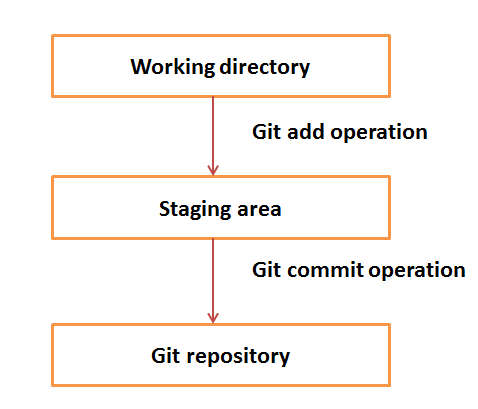
Step 1 − You modify a file from the working directory.

Step 2 − You add these files to the staging area.

Step 3 − You perform commit operation that moves the files from the staging area. After push operation, it stores the changes permanently to the Git repository.

  • Blobs: Binary Large Object
  • Trees
  • Commits
  • Branches
  • Tags
  • Clone
  • Pull
  • Push
  • HEAD
  • Revision
  • URL: URL represents the location of the Git repository. Git URL is stored in config file.

Git - Environment Setup

Installation of Git Client

1
2
3
4
5
6
7
8
# For Debian/ Ubuntu
sudo apt install git-core
git --version

# For RPM based distros
[CentOS ~]$ su -
[CentOS ~]# yum -y install git-core
[CentOS ~]# git --version

Customize Git Environment

Git provides the git config tool, which allows you to set configuration variables. Git stores all global configurations in .gitconfig file, which is located in your home directory.

Setting User Infomation

These information are used by Git for each commit.

1
2
[jerry@CentOS project]$ git config --global user.name "Jerry Mouse"						// username
[jerry@CentOS project]$ git config --global user.email "jerry@tutorialspoint.com" // email id

Avoid merge commits for pulling

You pull the latest changes from a remote repository, and if these changes are divergent, then by default Git creates merge commits. We can avoid this via following settings.

1
[jerry@CentOS project]$ git config --global branch.autosetuprebase always

Color highlighting,

enable color highlighting for Git in the console.

1
2
3
[jerry@CentOS project]$ git config --global color.ui true
[jerry@CentOS project]$ git config --global color.status auto
[jerry@CentOS project]$ git config --global color.branch auto

Setting default editor

By default, Git uses the system default editor. We can configure a different one by using git config.

1
git config --global core.editor vim

Setting default merge tool

Git does not provide a default merge tool for integrating conflicting changes into your working tree. We can set default merge tool by enabling following settings.

1
[jerry@CentOS project]$ git config --global merge.tool vimdiff

Listing Git settings

To verify your Git settings of the local repository, use git config –list command as given below.

1
[jerry@CentOS project]$ git config --list

The above command will produce the following result.

1
2
3
4
5
6
7
8
9
user.name=Jerry Mouse
user.email=jerry@tutorialspoint.com
push.default=nothing
branch.autosetuprebase=always
color.ui=true
color.status=auto
color.branch=auto
core.editor=vim
merge.tool=vimdiff

~/.gitconfig contents:

1
2
3
4
5
6
7
8
9
10
11
12
13
[user]
email = shawncheunmail@gmail.com
name = shawncheun
[branch]
autosetuprebase = always
[color]
ui = true
status = auto
brach = auto
[core]
editor = nano
[merge]
tool = vimdiff

Git - Life Cycle

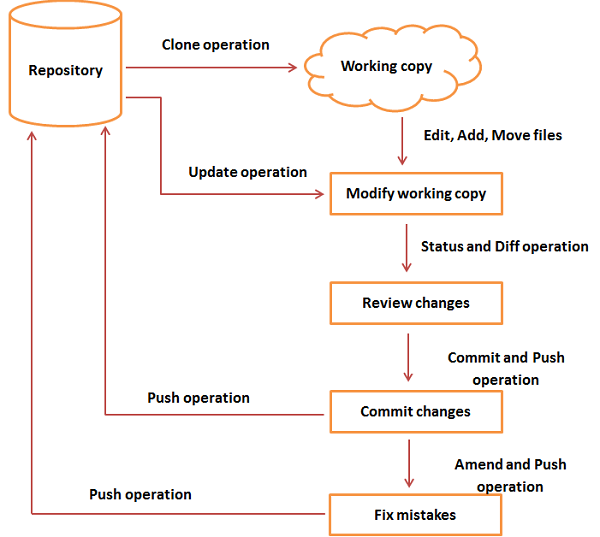
General workflow is as follows:

  • You clone the Git repository as a working copy.

  • You modify the working copy by adding/editing files.

  • If necessary, you also update the working copy by taking other developer’s changes.

  • You review the changes before commit.

  • You commit changes. If everything is fine, then you push the changes to the repository.

  • After committing, if you realize something is wrong, then you correct the last commit and push the changes to the repository.

Shown below is the pictorial representation of the work-flow.

Git - Create Operation

In this chapter, we will see how to create a remote Git repository; from now on, we will refer to it as Git Server. We need a Git server to allow team collaboration.

Create New User

1
2
3
4
5
6
7
8
# add new group
[root@CentOS ~]# groupadd devs

# add new user
[root@CentOS ~]# useradd -G devs -d /home/gituser -m -s /bin/bash gituser

# change password
[root@CentOS ~]# passwd gituser

Create a Bare Repository

Let us initialize a new repository by using init command followed by –bare option. It initializes the repository without a working directory. By convention, the bare repository must be named as .git.

1
2
3
4
5
6
7
8
9
10
11
12
[gituser@CentOS ~]$ pwd
/home/gituser

[gituser@CentOS ~]$ mkdir project.git
[gituser@CentOS ~]$ cd project.git/
[gituser@CentOS project.git]$ ls

[gituser@CentOS project.git]$ git --bare init
Initialized empty Git repository in /home/gituser-m/project.git/

[gituser@CentOS project.git]$ ls
branches config description HEAD hooks info objects refs

Generate Public/Private RSA Key Pair
Let us walk through the process of configuring a Git server, ssh-keygen utility generates public/private RSA key pair, that we will use for user authentication.

Note: Never share your PRIVATE KEY with others.

1
2
3
4
tom@CentOS ~]$ pwd
/home/tom

[tom@CentOS ~]$ ssh-keygen // ~/.ssh was created.

Adding Keys to authorized_keys

Suppose there are two developers working on a project, namely Tom and Jerry. Both users have generated public keys. Let us see how to use these keys for authentication.

Tom added his public key to the server by using ssh-copy-id command as given below -

1
2
3
4
[tom@CentOS ~]$ pwd
/home/tom

[tom@CentOS ~]$ ssh-copy-id -i ~/.ssh/id_rsa.pub gituser@git.server.com

Similarly, Jerry added his public key to the server by using ssh-copy-id command.

1
2
3
4
[jerry@CentOS ~]$ pwd
/home/jerry

[jerry@CentOS ~]$ ssh-copy-id -i ~/.ssh/id_rsa.pub gituser@git.server.com

Push Changes to the Repository

We have created a bare repository on the server and allowed access for two users. From now on, Tom and Jerry can push their changes to the repository by adding it as a remote.

Git init command creates .git directory to store metadata about the repository every time it reads the configuration from the .git/config file.

Tom creates a new directory, adds README file, and commits his change as initial commit. After commit, he verifies the commit message by running the git log command.

1
2
3
4
5
6
7
8
9
10
11
12
13
14
15
16
17
18
19
20
21
22
23
24
25
26
[tom@CentOS ~]$ pwd
/home/tom

[tom@CentOS ~]$ mkdir tom_repo

[tom@CentOS ~]$ cd tom_repo/

[tom@CentOS tom_repo]$ git init
Initialized empty Git repository in /home/tom/tom_repo/.git/

[tom@CentOS tom_repo]$ echo 'TODO: Add contents for README' > README

[tom@CentOS tom_repo]$ git status -s
?? README

[tom@CentOS tom_repo]$ git add .

[tom@CentOS tom_repo]$ git status -s
A README

[tom@CentOS tom_repo]$ git commit -m 'Initial commit'

# Output the following result
[master (root-commit) 19ae206] Initial commit
1 files changed, 1 insertions(+), 0 deletions(-)
create mode 100644 README

Tom checks the log message by executing the git log command.

1
2
3
4
5
6
7
8
[tom@CentOS tom_repo]$ git log

# Ouput the following result:
commit 19ae20683fc460db7d127cf201a1429523b0e319
Author: Tom Cat <tom@tutorialspoint.com>
Date: Wed Sep 11 07:32:56 2013 +0530

Initial commit

Tom committed his changes to the local repository. Now, it’s time to push the changes to the remote repository. But before that, we have to add the repository as a remote, this is a one-time operation. After this, he can safely push the changes to the remote repository.

Note − By default, Git pushes only to matching branches: For every branch that exists on the local side, the remote side is updated if a branch with the same name already exists there. In our tutorials, every time we push changes to the origin master branch, use appropriate branch name according to your requirement.

1
2
3
4
5
6
7
8
9
10
[tom@CentOS tom_repo]$ git remote add origin gituser@git.server.com:project.git
[tom@CentOS tom_repo]$ git push origin master

# Ouput the following result:
Counting objects: 3, done.
Writing objects: 100% (3/3), 242 bytes, done.
Total 3 (delta 0), reused 0 (delta 0)
To gituser@git.server.com:project.git
* [new branch]
master −> master

Now, the changes are successfully committed to the remote repository.

Git - Clone Operation

We have a bare repository on the Git server and Tom also pushed his first version. Now, Jerry can view his changes. The Clone operation creates an instance of the remote repository.

Jerry creates a new directory in his home directory and performs the clone operation.

1
2
3
4
5
6
7
8
[jerry@CentOS ~]$ mkdir jerry_repo
[jerry@CentOS ~]$ cd jerry_repo/
[jerry@CentOS jerry_repo]$ git clone gituser@git.server.com:project.git

# Produce the following result:
remote: Counting objects: 3, done.
Receiving objects: 100% (3/3), 241 bytes, done.
remote: Total 3 (delta 0), reused 0 (delta 0)

Jerry changes the directory to new local repository and lists its directory contents.

1
2
3
[jerry@CentOS jerry_repo]$ cd project/
[jerry@CentOS jerry_repo]$ ls
README

Git - Perform Changes

Jerry clones the repository and decides to implement basic string operations. So he creates string.c file. After adding the contents, string.c will look like as follows −

1
2
3
4
5
6
7
8
9
10
11
12
13
14
15
16
17
18
19
20
21
22
23
24
25
#include <stdio.h>

int my_strlen(char *s)
{
char *p = s;
while (*p)
++p;
return (p - s);
}

int main(void)
{
int i;
char *s[] =
{
"Git tutorials",
"Tutorials Point"
};

for (i = 0; i < 2; ++i)

printf("string lenght of %s = %d\n", s[i], my_strlen(s[i]));

return 0;
}

He compiled and tested his code and everything is working fine. Now, he can safely add these changes to the repository.

Git add operation adds file to the staging area.

1
2
3
4
5
[jerry@CentOS project]$ git status -s
?? string
?? string.c

[jerry@CentOS project]$ git add string.c

Git is showing a question mark before file names. Obviously, these files are not a part of Git, and that is why Git does not know what to do with these files. That is why, Git is showing a question mark before file names.

Jerry has added the file to the stash area, git status command will show files present in the staging area.

1
2
3
[jerry@CentOS project]$ git status -s
A string.c
?? string

To commit the changes, he used the git commit command followed by –m option. If we omit –m option. Git will open a text editor where we can write multiline commit message.

1
2
3
4
5
6
[jerry@CentOS project]$ git commit -m 'Implemented my_strlen function'

# Output
[master cbe1249] Implemented my_strlen function
1 files changed, 24 insertions(+), 0 deletions(-)
create mode 100644 string.c

After commit to view log details, he runs the git log command. It will display the information of all the commits with their commit ID, commit author, commit date and SHA-1 hash of commit.

1
2
3
4
5
6
7
8
9
10
11
12
13
14
[jerry@CentOS project]$ git log

# Output
commit cbe1249b140dad24b2c35b15cc7e26a6f02d2277
Author: Jerry Mouse <jerry@tutorialspoint.com>
Date: Wed Sep 11 08:05:26 2013 +0530

Implemented my_strlen function

commit 19ae20683fc460db7d127cf201a1429523b0e319
Author: Tom Cat <tom@tutorialspoint.com>
Date: Wed Sep 11 07:32:56 2013 +0530

Initial commit

Git - Review Changes

After viewing the commit details, Jerry realizes that the string length cannot be negative, that’s why he decides to change the return type of my_strlen function.

Jerry uses the git log command to view log details.

1
2
3
4
5
6
7
8
[jerry@CentOS project]$ git log

# Output:
commit cbe1249b140dad24b2c35b15cc7e26a6f02d2277
Author: Jerry Mouse <jerry@tutorialspoint.com>
Date: Wed Sep 11 08:05:26 2013 +0530

Implemented my_strlen function

Jerry uses the git show command to view the commit details. The git show command takes SHA-1 commit ID as a parameter.

1
2
3
4
5
6
7
8
9
10
11
12
13
14
15
16
17
18
19
20
21
22
23
24
25
26
27
28
29
30
[jerry@CentOS project]$ git show cbe1249b140dad24b2c35b15cc7e26a6f02d2277

# Output:
commit cbe1249b140dad24b2c35b15cc7e26a6f02d2277
Author: Jerry Mouse <jerry@tutorialspoint.com>
Date: Wed Sep 11 08:05:26 2013 +0530

Implemented my_strlen function


diff --git a/string.c b/string.c
new file mode 100644
index 0000000..187afb9
--- /dev/null
+++ b/string.c
@@ -0,0 +1,24 @@
+#include <stdio.h>
+
+int my_strlen(char *s)
+{
+
char *p = s;
+
+
while (*p)
+ ++p;
+ return (p -s );
+
}
+

He changes the return type of the function from int to size_t. After testing the code, he reviews his changes by running the git diff command.

1
[jerry@CentOS project]$ git diff

The above command will produce the following result −

1
2
3
4
5
6
7
8
9
10
11
12
13
14
15
16
17
18
19
diff --git a/string.c b/string.c
index 187afb9..7da2992 100644
--- a/string.c
+++ b/string.c
@@ -1,6 +1,6 @@
#include <stdio.h>

-int my_strlen(char *s)
+size_t my_strlen(char *s)
{
char *p = s;
@@ -18,7 +18,7 @@ int main(void)
};
for (i = 0; i < 2; ++i)
{
- printf("string lenght of %s = %d\n", s[i], my_strlen(s[i]));
+ printf("string lenght of %s = %lu\n", s[i], my_strlen(s[i]));
return 0;
}

Git diff shows ‘+’ sign before lines, which are newly added and ‘−’ for deleted lines.

Git - Commit Changes

Jerry has already committed the changes and he wants to correct his last commit. In this case, git amend operation will help. The amend operation changes the last commit including your commit message; it creates a new commit ID.

Before amend operation, he checks the commit log.

1
2
3
4
5
6
7
8
9
10
11
12
13
14
[jerry@CentOS project]$ git log

# Output
commit cbe1249b140dad24b2c35b15cc7e26a6f02d2277
Author: Jerry Mouse <jerry@tutorialspoint.com>
Date: Wed Sep 11 08:05:26 2013 +0530

Implemented my_strlen function

commit 19ae20683fc460db7d127cf201a1429523b0e319
Author: Tom Cat <tom@tutorialspoint.com>
Date: Wed Sep 11 07:32:56 2013 +0530

Initial commit

Jerry commits the new changes with – amend operation and views the commit log.

1
2
3
4
5
6
7
8
9
10
11
12
13
14
[jerry@CentOS project]$ git status -s
M string.c
?? string

[jerry@CentOS project]$ git add string.c

[jerry@CentOS project]$ git status -s
M string.c
?? string

[jerry@CentOS project]$ git commit --amend -m 'Changed return type of my_strlen to size_t'
[master d1e19d3] Changed return type of my_strlen to size_t
1 files changed, 24 insertions(+), 0 deletions(-)
create mode 100644 string.c

Now, git log will show new commit message with new commit ID −

1
2
3
4
5
6
7
8
9
10
11
12
13
14
[jerry@CentOS project]$ git log

# Output
commit d1e19d316224cddc437e3ed34ec3c931ad803958
Author: Jerry Mouse <jerry@tutorialspoint.com>
Date: Wed Sep 11 08:05:26 2013 +0530

Changed return type of my_strlen to size_t

commit 19ae20683fc460db7d127cf201a1429523b0e319
Author: Tom Cat <tom@tutorialspoint.com>
Date: Wed Sep 11 07:32:56 2013 +0530

Initial commit

Git - Push Operation

Jerry modified his last commit by using the amend operation and he is ready to push the changes. The Push operation stores data permanently to the Git repository. After a successful push operation, other developers can see Jerry’s changes.

Before push operation, he executes the git log to view the commit, and git show command to review his changes.

Jerry is happy with his changes and he is ready to push his changes.

1
2
3
4
5
6
7
8
9
10
11
[jerry@CentOS project]$ git push origin master

# Output
he above command will produce the following result:

Counting objects: 4, done.
Compressing objects: 100% (3/3), done.
Writing objects: 100% (3/3), 517 bytes, done.
Total 3 (delta 0), reused 0 (delta 0)
To gituser@git.server.com:project.git
19ae206..d1e19d3 master −> master

Jerry’s changes have been successfully pushed to the repository; now other developers can view his changes by performing clone or update operation.

Git - Update Operation

Modify Existing Function

Tom performs the clone operation and finds a new file string.c. He wants to know who added this file to the repository and for what purpose, so, he executes the git log command.

1
2
3
4
5
6
7
8
[tom@CentOS ~]$ git clone gituser@git.server.com:project.git

# Output
Initialized empty Git repository in /home/tom/project/.git/
remote: Counting objects: 6, done.
remote: Compressing objects: 100% (4/4), done.
Receiving objects: 100% (6/6), 726 bytes, done.
remote: Total 6 (delta 0), reused 0 (delta 0)

The Clone operation will create a new directory inside the current working directory. He changes the directory to newly created directory and executes the git log command.

1
2
3
4
5
6
7
8
9
10
11
12
13
14
15
[tom@CentOS ~]$ cd project/
[tom@CentOS project]$ git log

# Output
commit d1e19d316224cddc437e3ed34ec3c931ad803958
Author: Jerry Mouse <jerry@tutorialspoint.com>
Date: Wed Sep 11 08:05:26 2013 +0530

Changed return type of my_strlen to size_t

commit 19ae20683fc460db7d127cf201a1429523b0e319
Author: Tom Cat <tom@tutorialspoint.com>
Date: Wed Sep 11 07:32:56 2013 +0530

Initial commit

After observing the log, he realizes that the file string.c was added by Jerry to implement basic string operations. He is curious about Jerry’s code. So he opens string.c in text editor and immediately finds a bug. In my_strlen function, Jerry is not using a constant pointer. So, he decides to modify Jerry’s code. After modification, the code looks as follows −

1
2
3
4
5
6
7
8
9
10
11
12
13
14
15
16
17
[tom@CentOS project]$ git diff

# Output
diff --git a/string.c b/string.c
index 7da2992..32489eb 100644
--- a/string.c
+++ b/string.c
@@ -1,8 +1,8 @@
#include <stdio.h>
-size_t my_strlen(char *s)
+size_t my_strlen(const char *s)
{
- char *p = s;
+ const char *p = s;
while (*p)
++p;
}

After testing, he commits his change.

1
2
3
4
5
6
7
8
9
10
11
12
13
14
15
16
17
18
19
20
21
22
23
24
25
26
27
28
29
30
31
[tom@CentOS project]$ git status -s
M string.c
?? string

[tom@CentOS project]$ git add string.c

[tom@CentOS project]$ git commit -m 'Changed char pointer to const char pointer'
[master cea2c00] Changed char pointer to const char pointer
1 files changed, 2 insertions(+), 2 deletions(-)

[tom@CentOS project]$ git log

#Output
commit cea2c000f53ba99508c5959e3e12fff493b
Author: Tom Cat <tom@tutorialspoint.com>
Date: Wed Sep 11 08:32:07 2013 +0530

Changed char pointer to const char pointer


commit d1e19d316224cddc437e3ed34ec3c931ad803958
Author: Jerry Mouse <jerry@tutorialspoint.com>
Date: Wed Sep 11 08:05:26 2013 +0530

Changed return type of my_strlen to size_t


commit 19ae20683fc460db7d127cf201a1429523b0e319
Author: Tom Cat <tom@tutorialspoint.com>
Date: Wed Sep 11 07:32:56 2013 +0530
Initial commit

Tom uses git push command to push his changes.

1
2
3
4
5
6
7
8
9
[tom@CentOS project]$ git push origin master

# Output
Counting objects: 5, done.
Compressing objects: 100% (3/3), done.
Writing objects: 100% (3/3), 336 bytes, done.
Total 3 (delta 1), reused 0 (delta 0)
To gituser@git.server.com:project.git
d1e19d3..cea2c00 master −> master

Add New Function

Meanwhile, Jerry decides to implement string compare functionality. So he modifies string.c, the file looks as follows −

1
2
3
4
5
6
7
8
9
10
11
12
13
14
15
16
17
18
19
20
21
22
23
24
25
26
27
28
29
30
31
32
33
34
35
36
37
38
#include <stdio.h>

size_t my_strlen(const char *s)
{
char *p = s;
while (*p)
++p;
return (p - s);
}

char *my_strcpy(char *t, char *s)
{
char *p = t;

while (*t++ = *s++)
;

return p;
}

int main(void)
{
int i;

char p[32];
char *s[] =
{
"Git tutorials",
"Tutorials Point"
};

for (i = 0; i < 2; ++i)
printf("string lenght of %s = %d\n", s[i], my_strlen(s[i]));

printf("%s\n", my_strcp(p1, "Hello, World!!!"));

return 0;
}

After modification, he performed:

1
2
3
[jerry@CentOS project]$ git diff

# Output

After testing, he is ready to push his change.

1
2
3
4
5
6
7
8
9
[jerry@CentOS project]$ git status -s
M string.c
?? string

[jerry@CentOS project]$ git add string.c

[jerry@CentOS project]$ git commit -m "Added my_strcpy function"
[master e944e5a] Added my_strcpy function
1 files changed, 13 insertions(+), 0 deletions(-)

Before push operation, he verifies commit by viewing log messages.

1
2
3
4
5
6
7
8
9
10
11
12
13
14
15
16
17
18
19
20
[jerry@CentOS project]$ git log

# Output
commit e944e5aab74b26e7447d3281b225309e4e59efcd
Author: Jerry Mouse <jerry@tutorialspoint.com>
Date: Wed Sep 11 08:41:42 2013 +0530

Added my_strcpy function

commit d1e19d316224cddc437e3ed34ec3c931ad803958
Author: Jerry Mouse <jerry@tutorialspoint.com>
Date: Wed Sep 11 08:05:26 2013 +0530

Changed return type of my_strlen to size_t

commit 19ae20683fc460db7d127cf201a1429523b0e319
Author: Tom Cat <tom@tutorialspoint.com>
Date: Wed Sep 11 07:32:56 2013 +0530

Initial commit

Jerry is happy with the changes and he wants to push his changes.

1
2
3
4
5
6
7
8
9
10
[jerry@CentOS project]$ git push origin master

# If Output,
To gituser@git.server.com:project.git
! [rejected]
master −> master (non-fast-forward)
error: failed to push some refs to 'gituser@git.server.com:project.git'
To prevent you from losing history, non-fast-forward updates were rejected
Merge the remote changes before pushing again. See the 'Note about
fast-forwards' section of 'git push --help' for details.

But Git is not allowing Jerry to push his changes. Because Git identified that remote repository and Jerry’s local repository are not in sync. Because of this, he can lose the history of the project. To avoid this mess, Git failed this operation. Now, Jerry has to first update the local repository and only thereafter, he can push his own changes.

Fetch Latest Changes

Jerry executes the git pull command to synchronize his local repository with the remote one.

1
2
3
4
5
6
7
8
9
10
11
[jerry@CentOS project]$ git pull

# Output
remote: Counting objects: 5, done.
remote: Compressing objects: 100% (3/3), done.
remote: Total 3 (delta 1), reused 0 (delta 0)
Unpacking objects: 100% (3/3), done.
From git.server.com:project
d1e19d3..cea2c00 master −> origin/master
First, rewinding head to replay your work on top of it...
Applying: Added my_strcpy function

After pull operation, Jerry checks the log messages and finds the details of Tom’s commit with commit ID.

1
2
3
[jerry@CentOS project]$ git log

# Output

Now, Jerry’s local repository is fully synchronized with the remote repository. So he can safely push his changes.

1
[jerry@CentOS project]$ git push origin master

Git - Stash Operation

Suppose you are implementing a new feature for your product. Your code is in progress and suddenly a customer escalation comes. Because of this, you have to keep aside your new feature work for a few hours. You cannot commit your partial code and also cannot throw away your changes. So you need some temporary space, where you can store your partial changes and later on commit it.

In Git, the stash operation takes your modified tracked files, stages changes, and saves them on a stack of unfinished changes that you can reapply at any time.

1
2
3
[jerry@CentOS project]$ git status -s
M string.c
?? string

Now, you want to switch branches for customer escalation, but you don’t want to commit what you’ve been working on yet; so you’ll stash the changes. To push a new stash onto your stack, run the git stash command.

1
2
3
[jerry@CentOS project]$ git stash
Saved working directory and index state WIP on master: e86f062 Added my_strcpy function
HEAD is now at e86f062 Added my_strcpy function

Now, your working directory is clean and all the changes are saved on a stack. Let us verify it with the git status command.

1
2
[jerry@CentOS project]$ git status -s
?? string

Now you can safely switch the branch and work elsewhere. We can view a list of stashed changes by using the git stash list command.

1
2
[jerry@CentOS project]$ git stash list
stash@{0}: WIP on master: e86f062 Added my_strcpy function

Suppose you have resolved the customer escalation and you are back on your new feature looking for your half-done code, just execute the git stash pop command, to remove the changes from the stack and place them in the current working directory.

1
2
3
4
[jerry@CentOS project]$ git status -s
?? string

[jerry@CentOS project]$ git stash pop

The above command will produce the following result:

1
2
3
4
5
6
7
8
9
10
11
12
# On branch master
# Changed but not updated:
# (use "git add ..." to update what will be committed)
# (use "git checkout -- ..." to discard changes in working directory)
modified: string.c

# Untracked files:
# (use "git add ..." to include in what will be committed)

string
no changes added to commit (use "git add" and/or "git commit -a")
Dropped refs/stash@{0} (36f79dfedae4ac20e2e8558830154bd6315e72d4)
1
2
3
[jerry@CentOS project]$ git status -s
M string.c
?? string

Git - Move Operation

As the name suggests, the move operation moves a directory or a file from one location to another. Tom decides to move the source code into src directory. The modified directory structure will appear as follows −

1
2
3
4
5
6
7
8
9
10
11
12
13
[tom@CentOS project]$ pwd
/home/tom/project

[tom@CentOS project]$ ls
README string string.c

[tom@CentOS project]$ mkdir src

[tom@CentOS project]$ git mv string.c src/

[tom@CentOS project]$ git status -s
R string.c −> src/string.c
?? string

To make these changes permanent, we have to push the modified directory structure to the remote repository so that other developers can see this.

1
2
3
4
5
6
7
8
9
10
11
12
13
[tom@CentOS project]$ git commit -m "Modified directory structure"

[master 7d9ea97] Modified directory structure
1 files changed, 0 insertions(+), 0 deletions(-)
rename string.c => src/string.c (100%)

[tom@CentOS project]$ git push origin master
Counting objects: 4, done.
Compressing objects: 100% (2/2), done.
Writing objects: 100% (3/3), 320 bytes, done.
Total 3 (delta 0), reused 0 (delta 0)
To gituser@git.server.com:project.git
e86f062..7d9ea97 master −> master

In Jerry’s local repository, before the pull operation, it will show the old directory structure.

1
2
3
4
5
[jerry@CentOS project]$ pwd
/home/jerry/jerry_repo/project

[jerry@CentOS project]$ ls
README string string.c

But after the pull operation, the directory structure will get updated. Now, Jerry can see the src directory and the file present inside that directory.

1
2
3
4
5
6
7
8
9
10
11
12
13
14
15
[jerry@CentOS project]$ git pull
remote: Counting objects: 4, done.
remote: Compressing objects: 100% (2/2), done.
remote: Total 3 (delta 0), reused 0 (delta 0)
Unpacking objects: 100% (3/3), done.
From git.server.com:project
e86f062..7d9ea97 master −> origin/master
First, rewinding head to replay your work on top of it...
Fast-forwarded master to 7d9ea97683da90bcdb87c28ec9b4f64160673c8a.

[jerry@CentOS project]$ ls
README src string

[jerry@CentOS project]$ ls src/
string.c

Git - Rename Operation

Till now, both Tom and Jerry were using manual commands to compile their project. Now, Jerry decides to create Makefile for their project and also give a proper name to the file “string.c”.

1
2
3
4
5
6
7
8
9
10
11
12
13
14
[jerry@CentOS project]$ pwd
/home/jerry/jerry_repo/project

[jerry@CentOS project]$ ls
README src

[jerry@CentOS project]$ cd src/
[jerry@CentOS project]$ touch makefile
[jerry@CentOS src]$ git add Makefile
[jerry@CentOS src]$ git mv string.c string_operations.c

[jerry@CentOS src]$ git status -s
A Makefile
R string.c −> string_operations.c

Git is showing R before file name to indicate that the file has been renamed.

For commit operation, Jerry used -a flag, that makes git commit automatically detect the modified files.

1
2
3
4
5
6
7
[jerry@CentOS src]$ git commit -a -m 'Added Makefile and renamed strings.c to
string_operations.c '

[master 94f7b26] Added Makefile and renamed strings.c to string_operations.c
1 files changed, 0 insertions(+), 0 deletions(-)
create mode 100644 src/Makefile
rename src/{string.c => string_operations.c} (100%)

After commit, he pushes his changes to the repository.

1
2
3
4
5
6
7
8
9
[jerry@CentOS src]$ git push origin master

# Output
Counting objects: 6, done.
Compressing objects: 100% (3/3), done.
Writing objects: 100% (4/4), 396 bytes, done.
Total 4 (delta 0), reused 0 (delta 0)
To gituser@git.server.com:project.git
7d9ea97..94f7b26 master −> master

Now, other developers can view these modifications by updating their local repository.

Git - Delete Operation

Tom updates his local repository and finds the compiled binary in the src directory. After viewing the commit message, he realizes that the compiled binary was added by Jerry.

1
2
3
4
5
6
7
8
9
10
11
12
13
14
15
16
[tom@CentOS src]$ pwd
/home/tom/project/src

[tom@CentOS src]$ ls
Makefile string_operations string_operations.c

[tom@CentOS src]$ file string_operations
string_operations: ELF 64-bit LSB executable, x86-64, version 1 (SYSV), dynamically linked (uses
shared libs), for GNU/Linux 2.6.18, not stripped

[tom@CentOS src]$ git log
commit 29af9d45947dc044e33d69b9141d8d2dad37cc62
Author: Jerry Mouse <jerry@tutorialspoint.com>
Date: Wed Sep 11 10:16:25 2013 +0530

Added compiled binary

VCS is used to store the source code only and not executable binaries. So, Tom decides to remove this file from the repository. For further operation, he uses the git rm command.

1
2
3
4
5
6
7
8
9
10
11
[tom@CentOS src]$ ls
Makefile string_operations string_operations.c

[tom@CentOS src]$ git rm string_operations
rm 'src/string_operations'

[tom@CentOS src]$ git commit -a -m "Removed executable binary"

[master 5776472] Removed executable binary
1 files changed, 0 insertions(+), 0 deletions(-)
delete mode 100755 src/string_operations

After commit, he pushes his changes to the repository.

1
2
3
4
5
6
7
8
9
[tom@CentOS src]$ git push origin master

# Output
Counting objects: 5, done.
Compressing objects: 100% (3/3), done.
Writing objects: 100% (3/3), 310 bytes, done.
Total 3 (delta 1), reused 0 (delta 0)
To gituser@git.server.com:project.git
29af9d4..5776472 master −> master

Git - Fix Mistakes

To err is human. So every VCS provides a feature to fix mistakes until a certain point. Git provides a feature that we can use to undo the modifications that have been made to the local repository.

Suppose the user accidentally does some changes to his local repository and then wants to undo these changes. In such cases, the revert operation plays an important role.

Revert Uncommitted Changes

Let us suppose Jerry accidentally modifies a file from his local repository. But he wants to undo his modification. To handle this situation, we can use the git checkout command. We can use this command to revert the contents of a file.

1
2
3
4
5
6
7
8
9
10
[jerry@CentOS src]$ pwd
/home/jerry/jerry_repo/project/src

[jerry@CentOS src]$ git status -s
M string_operations.c

[jerry@CentOS src]$ git checkout string_operations.c
Updated 1 path from the index

[jerry@CentOS src]$ git status –s

Further, we can use the git checkout command to obtain a deleted file from the local repository. Let us suppose Tom deletes a file from the local repository and we want this file back. We can achieve this by using the same command.

1
2
3
4
5
6
7
8
9
10
11
12
13
14
[tom@CentOS src]$ pwd
/home/tom/top_repo/project/src

[tom@CentOS src]$ ls -1
Makefile
string_operations.c

[tom@CentOS src]$ rm string_operations.c

[tom@CentOS src]$ ls -1
Makefile

[tom@CentOS src]$ git status -s
D string_operations.c

Git is showing the letter D before the filename. This indicates that the file has been deleted from the local repository.

1
2
3
4
5
6
7
[tom@CentOS src]$ git checkout string_operations.c

[tom@CentOS src]$ ls -1
Makefile
string_operations.c

[tom@CentOS src]$ git status -s

Note − We can perform all these operations before commit.

Remove Changes from Staging Area

We have seen that when we perform an add operation, the files move from the local repository to the stating area. If a user accidently modifies a file and adds it into the staging area, he can revert his changes, by using the git checkout command.

In Git, there is one HEAD pointer that always points to the latest commit. If you want to undo a change from the staged area, then you can use the git checkout command, but with the checkout command, you have to provide an additional parameter, i.e., the HEAD pointer. The additional commit pointer parameter instructs the git checkout command to reset the working tree and also to remove the staged changes.

Let us suppose Tom modifies a file from his local repository. If we view the status of this file, it will show that the file was modified but not added into the staging area.

1
2
3
4
5
6
7
8
9
10
11
tom@CentOS src]$ pwd
/home/tom/top_repo/project/src
# Unmodified file

[tom@CentOS src]$ git status -s

# Modify file and view it’s status.
[tom@CentOS src]$ git status -s
M string_operations.c

[tom@CentOS src]$ git add string_operations.c

Git status shows that the file is present in the staging area, now revert it by using the git checkout command and view the status of the reverted file.

1
2
3
[tom@CentOS src]$ git checkout HEAD -- string_operations.c

[tom@CentOS src]$ git status -s

Move HEAD Pointer with Git Reset

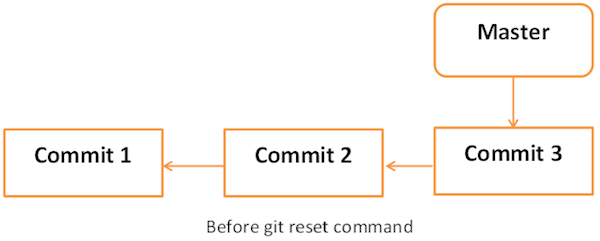
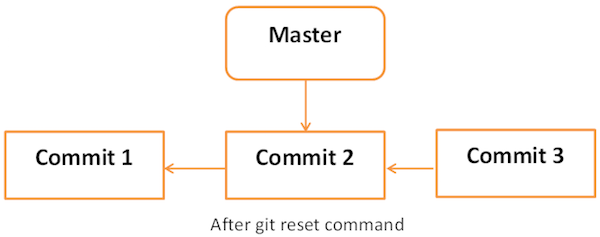
After doing few changes, you may decide to remove these changes. The Git reset command is used to reset or revert changes. We can perform three different types of reset operations.

Below diagram shows the pictorial representation of Git reset command.

Soft

Each branch has a HEAD pointer, which points to the latest commit. If we use Git reset command with –soft option followed by commit ID, then it will reset the HEAD pointer only without destroying anything.

.git/refs/heads/master file stores the commit ID of the HEAD pointer. We can verify it by using the git log -1 command.

1
2
[jerry@CentOS project]$ cat .git/refs/heads/master
577647211ed44fe2ae479427a0668a4f12ed71a1

Now, view the latest commit ID, which will match with the above commit ID.

1
[jerry@CentOS project]$ git log -2

The above command will produce the following result.

1
2
3
4
5
6
7
8
9
10
11
12
commit 577647211ed44fe2ae479427a0668a4f12ed71a1
Author: Tom Cat <tom@tutorialspoint.com>
Date: Wed Sep 11 10:21:20 2013 +0530

Removed executable binary


commit 29af9d45947dc044e33d69b9141d8d2dad37cc62
Author: Jerry Mouse <jerry@tutorialspoint.com>
Date: Wed Sep 11 10:16:25 2013 +0530

Added compiled binary

Let us reset the HEAD pointer.

1
[jerry@CentOS project]$ git reset --soft HEAD~

Now, we just reset the HEAD pointer back by one position. Let us check the contents of .git/refs/heads/master file.

1
2
[jerry@CentOS project]$ cat .git/refs/heads/master
29af9d45947dc044e33d69b9141d8d2dad37cc62

Commit ID from file is changed, now verify it by viewing commit messages.

1
jerry@CentOS project]$ git log -2

The above command will produce the following result.

1
2
3
4
5
6
7
8
9
10
11
12
commit 29af9d45947dc044e33d69b9141d8d2dad37cc62
Author: Jerry Mouse <jerry@tutorialspoint.com>
Date: Wed Sep 11 10:16:25 2013 +0530

Added compiled binary


commit 94f7b26005f856f1a1b733ad438e97a0cd509c1a
Author: Jerry Mouse <jerry@tutorialspoint.com>
Date: Wed Sep 11 10:08:01 2013 +0530

Added Makefile and renamed strings.c to string_operations.c

mixed

Git reset with –mixed option reverts those changes from the staging area that have not been committed yet. It reverts the changes from the staging area only. The actual changes made to the working copy of the file are unaffected. The default Git reset is equivalent to the git reset – mixed.

hard

If you use –hard option with the Git reset command, it will clear the staging area; it will reset the HEAD pointer to the latest commit of the specific commit ID and delete the local file changes too.

Let us check the commit ID.

1
2
3
4
[jerry@CentOS src]$ pwd
/home/jerry/jerry_repo/project/src

[jerry@CentOS src]$ git log -1

The above command will produce the following result.

1
2
3
4
5
commit 577647211ed44fe2ae479427a0668a4f12ed71a1
Author: Tom Cat <tom@tutorialspoint.com>
Date: Wed Sep 11 10:21:20 2013 +0530

Removed executable binary

Jerry modified a file by adding single-line comment at the start of file.

1
2
3
[jerry@CentOS src]$ head -2 string_operations.c
/* This line be removed by git reset operation */
#include <stdio.h>

He verified it by using the git status command.

1
2
[jerry@CentOS src]$ git status -s
M string_operations.c

Jerry adds the modified file to the staging area and verifies it with the git status command.

1
2
3
4
5
6
7
8
9
10
[jerry@CentOS src]$ git add string_operations.c
[jerry@CentOS src]$ git status

# Output
On branch master
Your branch is up to date with 'origin/master'.

Changes to be committed:
(use "git restore --staged <file>..." to unstage)
modified: string_operations.c

Git status is showing that the file is present in the staging area. Now, reset HEAD with – hard option.

1
2
3
[jerry@CentOS src]$ git reset --hard 577647211ed44fe2ae479427a0668a4f12ed71a1		// "Remove executable binary"

HEAD is now at 5776472 Removed executable binary

Git reset command succeeded, which will revert the file from the staging area as well as remove any local changes made to the file.

1
[jerry@CentOS src]$ git status -s

Git status is showing that the file has been reverted from the staging area.

1
2
[jerry@CentOS src]$ head -2 string_operations.c
#include <stdio.h>

The hard reset command also shows that the reset operation removed the local changes too.

Git - Tag Operation

Tag operation allows giving meaningful names to a specific version in the repository. Suppose Tom and Jerry decide to tag their project code so that they can later access it easily.

Create Tags

Let us tag the current HEAD by using the git tag command. Tom provides a tag name with -a option and provides a tag message with –m option.

1
2
3
4
tom@CentOS project]$ pwd
/home/tom/top_repo/project

[tom@CentOS project]$ git tag -a 'Release_1_0' -m 'Tagged basic string operation code' HEAD

If you want to tag a particular commit, then use the appropriate COMMIT ID instead of the HEAD pointer.

Tom uses the following command to push the tag into the remote repository.

1
2
3
4
5
6
7
8
9
[tom@CentOS project]$ git push origin tag Release_1_0

# Output
Counting objects: 1, done.
Writing objects: 100% (1/1), 183 bytes, done.
Total 1 (delta 0), reused 0 (delta 0)
To gituser@git.server.com:project.git
* [new tag]
Release_1_0 −> Release_1_0

View Tags

Tom created tags. Now, Jerry can view all the available tags by using the Git tag command with –l option.

1
2
3
4
5
6
7
8
9
10
11
12
13
14
[jerry@CentOS src]$ pwd
/home/jerry/jerry_repo/project/src

[jerry@CentOS src]$ git pull
remote: Counting objects: 1, done.
remote: Total 1 (delta 0), reused 0 (delta 0)
Unpacking objects: 100% (1/1), done.
From git.server.com:project
* [new tag]
Release_1_0 −> Release_1_0
Current branch master is up to date.

[jerry@CentOS src]$ git tag -l
Release_1_0

Jerry uses the Git show command followed by its tag name to view more details about tag.

1
[jerry@CentOS src]$ git show Release_1_0

Delete Tags

Tom uses the following command to delete tags from the local as well as the remote repository.

1
2
3
4
5
[tom@CentOS project]$ git tag
Release_1_0

[tom@CentOS project]$ git tag -d Release_1_0
Deleted tag 'Release_1_0' (was 0f81ff4)

Remove tag from remote repository.

1
2
3
[tom@CentOS project]$ git push origin :Release_1_0
To gituser@git.server.com:project.git
- [deleted] Release_1_0

Git - Patch Operation

Patch is a text file, whose contents are similar to Git diff, but along with code, it also has metadata about commits; e.g., commit ID, date, commit message, etc. We can create a patch from commits and other people can apply them to their repository.

Jerry implements the strcat function for his project. Jerry can create a path of his code and send it to Tom. Then, he can apply the received patch to his code.

Jerry uses the Git format-patch command to create a patch for the latest commit. If you want to create a patch for a specific commit, then use COMMIT_ID with the format-patch command.

1
2
3
4
5
6
7
8
9
10
11
12
13
14
15
16
17
18
[jerry@CentOS project]$ pwd
/home/jerry/jerry_repo/project/src

[jerry@CentOS src]$ git status -s
M string_operations.c
?? string_operations

[jerry@CentOS src]$ git add string_operations.c

[jerry@CentOS src]$ git commit -m "Added my_strcat function"

[master b4c7f09] Added my_strcat function
1 files changed, 13 insertions(+), 0 deletions(-)

[jerry@CentOS src]$ git format-patch -1
0001-Added-my_strcat-function.patch


The above command creates .patch files inside the current working directory.

1
2
[jerry@centOS src]$ ls
0001-Added-my_strcat-function.patch Makefile string_operations.c

Tom can use this patch to modify his files. Git provides two commands to apply patches git am and git apply, respectively.

  • git apply modifies the local files without creating commit, while
  • git am modifies the file and creates commit as well.

To apply patch and create commit, use the following command −

1
2
3
4
5
6
7
8
9
10
11
12
[tom@CentOS src]$ pwd
/home/tom/top_repo/project/src

[tom@CentOS src]$ git diff

[tom@CentOS src]$ git status –s

[tom@CentOS src]$ git apply 0001-Added-my_strcat-function.patch

[tom@CentOS src]$ git status -s
M string_operations.c
?? 0001-Added-my_strcat-function.patch

The patch gets applied successfully, now we can view the modifications by using the git diff command. Show changes between commits, commit and working tree, etc

1
2
3
4
5
6
7
8
9
10
11
12
13
14
15
16
17
18
19
20
21
22
23
24
25
[tom@CentOS src]$ git diff

diff --git a/src/string_operations.c b/src/string_operations.c
index 0fc730f..a958903 100644
--- a/src/string_operations.c
+++ b/src/string_operations.c
@@ -1,5 +1,18 @@
#include <stdio.h>

+char *my_strcat(char *t, char *s)
+{
+ char *p = t;
+
+ while (*p)
+ ++p;
+
+ while (*p++ = *s++)
+ ;
+ return t;
+
+}
+
size_t my_strlen(const char *s)
{
char *p = s;

Git - Managing Branches

Branch operation allows creating another line of development. We can use this operation to fork off the development process into two different directions. For example, we released a product for 6.0 version and we might want to create a branch so that the development of 7.0 features can be kept separate from 6.0 bug fixes.

Create Branch

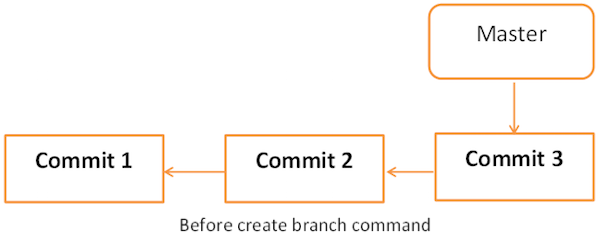
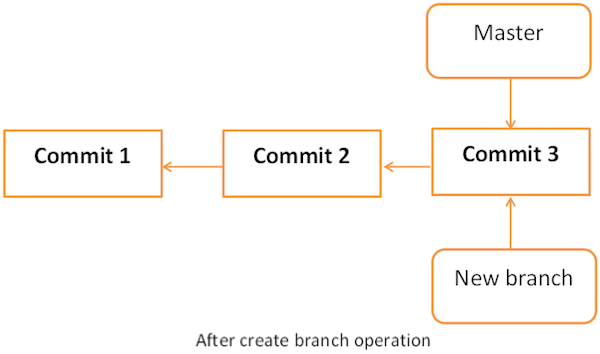
Tom creates a new branch using the git branch command. We can create a new branch from an existing one. We can use a specific commit or tag as the starting point. If any specific commit ID is not provided, then the branch will be created with HEAD as its starting point.

1
2
3
4
5
[jerry@CentOS src]$ git branch new_branch

[jerry@CentOS src]$ git branch
* master
new_branch

A new branch is created; Tom used the git branch command to list the available branches. Git shows an asterisk mark before currently checked out branch.

The pictorial representation of create branch operation is shown below −

Switch between Branches

Jerry uses the git checkout command to switch between branches.

1
2
3
4
5
[jerry@CentOS src]$ git checkout new_branch
Switched to branch 'new_branch'
[jerry@CentOS src]$ git branch
master
* new_branch

Shortcut to Create and Switch Branch

In the above example, we have used two commands to create and switch branches, respectively. Git provides –b option with the checkout command; this operation creates a new branch and immediately switches to the new branch.

1
2
3
4
5
6
7
[jerry@CentOS src]$ git checkout -b test_branch
Switched to a new branch 'test_branch'

[jerry@CentOS src]$ git branch
master
new_branch
* test_branch

Delete a Branch

A branch can be deleted by providing –D option with git branch command. But before deleting the existing branch, switch to the other branch.

Jerry is currently on test_branch and he wants to remove that branch. So he switches branch and deletes branch as shown below.

1
2
3
4
5
6
7
8
9
10
11
12
13
14
[jerry@CentOS src]$ git branch
master
new_branch
* test_branch

[jerry@CentOS src]$ git checkout master
Switched to branch 'master'

[jerry@CentOS src]$ git branch -D test_branch
Deleted branch test_branch (was 5776472).

[jerry@CentOS src]$ git branch
* master
new_branch

Rename a Branch

Jerry decides to add support for wide characters in his string operations project. He has already created a new branch, but the branch name is not appropriate. So he changes the branch name by using –m option followed by the old branch name and the new branch name.

1
2
3
4
5
6
7
8
9
10
11
[jerry@CentOS src]$ git branch
* master
new_branch

[jerry@CentOS src]$ git branch -m new_branch wchar_support

Now, the git branch command will show the new branch name.

[jerry@CentOS src]$ git branch
* master
wchar_support

Merge Two Branches

Jerry implements a function to return the string length of wide character string. New the code will appear as follows −

1
2
3
4
5
6
7
8
9
10
11
12
13
14
15
16
17
18
19
20
21
22
23
24
25
26
27
28
29
30
31
32
33
[jerry@CentOS src]$ git checkout wchar_support
[jerry@CentOS src]$ git branch
master
* wchar_support

[jerry@CentOS src]$ pwd
/home/jerry/jerry_repo/project/src

[jerry@CentOS src]$ git diff

diff --git a/src/string_operations.c b/src/string_operations.c
index a958903..0cbf72e 100644
--- a/src/string_operations.c
+++ b/src/string_operations.c
@@ -1,4 +1,18 @@
#include <stdio.h>
+#include <wchar.h>
+
+size_t w_strlen(const wchar_t *s)
+
+{
+
+ const wchar_t *p = s;
+
+
+ while (*p)
+ ++p;
+ return (p - s);
+
+}

char *my_strcat(char *t, char *s)
{

After testing, he commits and pushes his changes to the new branch.

1
2
3
4
5
6
7
8
9
10
11
[jerry@CentOS src]$ git status -s
M string_operations.c
?? string_operations

[jerry@CentOS src]$ git add string_operations.c

[jerry@CentOS src]$ git commit -m 'Added w_strlen function to return string lenght of wchar_t
string'

[wchar_support 64192f9] Added w_strlen function to return string lenght of wchar_t string
1 files changed, 10 insertions(+), 0 deletions(-)

Note that Jerry is pushing these changes to the new branch, which is why he used the branch name wchar_support instead of master branch.

1
2
3
4
5
6
7
8
9
[jerry@CentOS src]$ git push origin wchar_support   <−−− Observer branch_name

Enumerating objects: 7, done.
Counting objects: 100% (7/7), done.
Compressing objects: 100% (4/4), done.
Writing objects: 100% (4/4), 461 bytes | 461.00 KiB/s, done.
Total 4 (delta 1), reused 0 (delta 0), pack-reused 0
To centos:project.git
* [new branch] wchr_support -> wchr_support

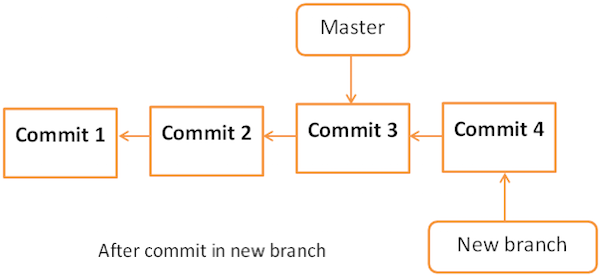
After committing the changes, the new branch will appear as follows −

Tom is curious about what Jerry is doing in his private branch and he checks the log from the wchar_support branch.

1
2
3
4
5
6
7
8
9
10
11
12
13
14
15
16
17
18
[tom@CentOS src]$ pwd
/home/tom/top_repo/project/src

[tom@CentOS src]$ git pull

[tom@CentOS src]$ git log origin/wchar_support -2

commit 64192f91d7cc2bcdf3bf946dd33ece63b74184a3
Author: Jerry Mouse <jerry@tutorialspoint.com>
Date: Wed Sep 11 16:10:06 2013 +0530

Added w_strlen function to return string lenght of wchar_t string

commit 577647211ed44fe2ae479427a0668a4f12ed71a1
Author: Tom Cat <tom@tutorialspoint.com>
Date: Wed Sep 11 10:21:20 2013 +0530

Removed executable binary

By viewing commit messages, Tom realizes that Jerry implemented the strlen function for wide character and he wants the same functionality in the master branch. Instead of re-implementing, he decides to take Jerry’s code by merging his branch with the master branch.

1
2
3
4
5
6
7
8
9
10
11
[tom@CentOS project]$ git branch
* master

[tom@CentOS project]$ pwd
/home/tom/top_repo/project

[tom@CentOS project]$ git merge origin/wchar_support // Message
Updating 5776472..64192f9
Fast-forward
src/string_operations.c | 10 ++++++++++
1 files changed, 10 insertions(+), 0 deletions(-)

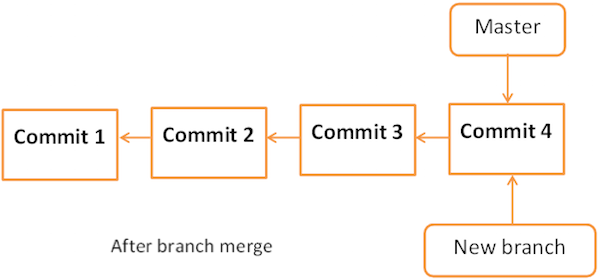
Now, the branch wchar_support has been merged with the master branch. We can verify it by viewing the commit message or by viewing the modifications done into the string_operation.c file.

1
2
3
4
5
6
7
8
9
10
11
12
13
14
15
16
17
18
19
20
21
22
23
[tom@CentOS project]$ cd src/

[tom@CentOS src]$ git log -1

commit 64192f91d7cc2bcdf3bf946dd33ece63b74184a3
Author: Jerry Mouse
Date: Wed Sep 11 16:10:06 2013 +0530

Added w_strlen function to return string lenght of wchar_t string

[tom@CentOS src]$ head -12 string_operations.c

#include <stdio.h>
#include <wchar.h>
size_t w_strlen(const wchar_t *s)
{
const wchar_t *p = s;

while (*p)
++p;

return (p - s);
}

After testing, he pushes his code changes to the master branch.

1
2
3
4
[tom@CentOS src]$ git push origin master
Total 0 (delta 0), reused 0 (delta 0)
To gituser@git.server.com:project.git
5776472..64192f9 master −> master

Rebase Branches

The Git rebase command is a branch merge command, but the difference is that it modifies the order of commits.

The Git merge command tries to put the commits from other branches on top of the HEAD of the current local branch. For example, your local branch has commits A−>B−>C−>D and the merge branch has commits A−>B−>X−>Y, then git merge will convert the current local branch to something like A−>B−>C−>D−>X−>Y

The Git rebase command tries to find out the common ancestor between the current local branch and the merge branch. It then pushes the commits to the local branch by modifying the order of commits in the current local branch. For example, if your local branch has commits A−>B−>C−>D and the merge branch has commits A−>B−>X−>Y, then Git rebase will convert the current local branch to something like A−>B−>X−>Y−>C−>D.

When multiple developers work on a single remote repository, you cannot modify the order of the commits in the remote repository. In this situation, you can use rebase operation to put your local commits on top of the remote repository commits and you can push these changes.

Git - Handling Conflicts

Perform Changes in wchar_support Branch

Jerry is working on the wchar_support branch. He changes the name of the functions and after testing, he commits his changes.

1
2
3
4
5
6
7
8
9
10
11
12
13
14
15
16
[jerry@CentOS src]$ git branch
master
* wchar_support
[jerry@CentOS src]$ git diff

diff --git a/src/string_operations.c b/src/string_operations.c
index 8fb4b00..01ff4e0 100644
--- a/src/string_operations.c
+++ b/src/string_operations.c
@@ -1,7 +1,7 @@
#include <stdio.h>
#include <wchar.h>
-size_t w_strlen(const wchar_t *s)
+size_t my_wstrlen(const wchar_t *s)
{
const wchar_t *p = s;

After verifying the code he commits his changes.

1
2
3
4
5
6
7
8
9
10
[jerry@CentOS src]$ git status -s
M string_operations.c

[jerry@CentOS src]$ git add string_operations.c

[jerry@CentOS src]$ git commit -m 'Changed function name'
[wchar_support 3789fe8] Changed function name
1 files changed, 1 insertions(+), 1 deletions(-)

[jerry@CentOS src]$ git push origin wchar_support

Git - Handling Conflicts *

Previous Page

Next Page

Perform Changes in wchar_support Branch

Jerry is working on the wchar_support branch. He changes the name of the functions and after testing, he commits his changes.

1
2
3
4
[jerry@CentOS src]$ git branch
master
* wchar_support
[jerry@CentOS src]$ git diff

The above command produces the following result −

1
2
3
4
5
6
7
8
9
10
11
diff --git a/src/string_operations.c b/src/string_operations.c
index 8fb4b00..01ff4e0 100644
--- a/src/string_operations.c
+++ b/src/string_operations.c
@@ -1,7 +1,7 @@
#include <stdio.h>
#include <wchar.h>
-size_t w_strlen(const wchar_t *s)
+size_t my_wstrlen(const wchar_t *s)
{
const wchar_t *p = s;

After verifying the code he commits his changes.

1
2
3
4
5
6
7
8
9
10
[jerry@CentOS src]$ git status -s
M string_operations.c

[jerry@CentOS src]$ git add string_operations.c

[jerry@CentOS src]$ git commit -m 'Changed function name'
[wchar_support 3789fe8] Changed function name
1 files changed, 1 insertions(+), 1 deletions(-)

[jerry@CentOS src]$ git push origin wchar_support

The above command will produce the following result −

1
2
3
4
5
6
Counting objects: 7, done.
Compressing objects: 100% (4/4), done.
Writing objects: 100% (4/4), 409 bytes, done.
Total 4 (delta 1), reused 0 (delta 0)
To gituser@git.server.com:project.git
64192f9..3789fe8 wchar_support -> wchar_support

Perform Changes in Master Branch

Meanwhile in the master branch, Tom also changes the name of the same function and pushes his changes to the master branch.

1
2
3
4
5
6
7
8
9
10
11
12
13
14
15
16
[tom@CentOS src]$ git branch
* master
[tom@CentOS src]$ git diff

diff --git a/src/string_operations.c b/src/string_operations.c
index 8fb4b00..52bec84 100644
--- a/src/string_operations.c
+++ b/src/string_operations.c
@@ -1,7 +1,8 @@
#include <stdio.h>
#include <wchar.h>
-size_t w_strlen(const wchar_t *s)
+/* wide character strlen fucntion */
+size_t my_wc_strlen(const wchar_t *s)
{
const wchar_t *p = s;

After verifying diff, he commits his changes.

1
2
3
4
5
6
7
8
9
10
[tom@CentOS src]$ git status -s
M string_operations.c

[tom@CentOS src]$ git add string_operations.c

[tom@CentOS src]$ git commit -m 'Changed function name from w_strlen to my_wc_strlen'
[master ad4b530] Changed function name from w_strlen to my_wc_strlen
1 files changed, 2 insertions(+), 1 deletions(-)

[tom@CentOS src]$ git push origin master

On the wchar_support branch, Jerry implements strchr function for wide character string. After testing, he commits and pushes his changes to the wchar_support branch.

1
2
3
4
5
6
7
8
9
10
11
12
13
14
15
16
[jerry@CentOS src]$ git branch
master
* wchar_support
[jerry@CentOS src]$ git diff

wchar_t *my_wstrchr(wchar_t *ws, wchar_t wc)

{
while (*ws)
{
if (*ws == wc)
return ws;
++ws;
}
return NULL;
}

After verifying, he commits his changes.

1
2
3
4
5
6
7
8
9
10
[jerry@CentOS src]$ git status -s
M string_operations.c

[jerry@CentOS src]$ git add string_operations.c

[jerry@CentOS src]$ git commit -m 'Addded strchr function for wide character string'
[wchar_support 9d201a9] Addded strchr function for wide character string
1 files changed, 10 insertions(+), 0 deletions(-)

[jerry@CentOS src]$ git push origin wchar_support

Tackle Conflicts

Tom wants to see what Jerry is doing on his private branch so, he tries to pull the latest changes from the wchar_support branch, but Git aborts the operation with the following error message.

1
2
3
4
5
6
7
8
9
10
11
12
13
[tom@CentOS src]$ git pull origin wchar_support

remote: Counting objects: 11, done.
63Git Tutorials
remote: Compressing objects: 100% (8/8), done.
remote: Total 8 (delta 2), reused 0 (delta 0)
Unpacking objects: 100% (8/8), done.
From git.server.com:project
* branch
wchar_support -> FETCH_HEAD
Auto-merging src/string_operations.c
CONFLICT (content): Merge conflict in src/string_operations.c
Automatic merge failed; fix conflicts and then commit the result.

Resolve Conflicts

From the error message, it is clear that there is a conflict in src/string_operations.c . He runs the git diff command to view further details.

1
2
3
4
5
6
7
8
9
10
11
12
13
14
15
16
17
18
19
20
21
22
23
24
25
26
27
28
29
30
31
32
33
34
35
[tom@CentOS src]$ git diff

diff --cc src/string_operations.c
index 52bec84,163a779..0000000
--- a/src/string_operations.c
+++ b/src/string_operations.c
@@@ -1,8 -1,17 +1,22 @@@
#include <stdio.h>
#include <wchar.h>
++<<<<<<< HEAD
+/* wide character strlen fucntion */
+size_t my_wc_strlen(const wchar_t *s)
++=======
+ wchar_t *my_wstrchr(wchar_t *ws, wchar_t wc)
+
{
+
+
while (*ws)
{
if (*ws == wc)
+
return ws;
+
++ws;
+
}
+ return NULL;
+
}
+
+ size_t my_wstrlen(const wchar_t *s)
++>>>>>>>9d201a9c61bc4713f4095175f8954b642dae8f86
{
const wchar_t *p = s;

As both Tom and Jerry changed the name of the same function, Git is in a state of confusion and it asks the user to resolve the conflict manually.

Tom decides to keep the function name suggested by Jerry, but he keeps the comment added by him, as it is. After removing the conflict markers, git diff will look like this.
1
2
3
4
5
6
7
8
9
10
11
12
13
14
15
16
17
18
19
20
21
22
23
24
25
26
27
28
29
30
31
32
33
[tom@CentOS src]$ git diff

diff --cc src/string_operations.c
index 52bec84,163a779..0000000
--- a/src/string_operations.c
+++ b/src/string_operations.c
@@@ -1,8 -1,17 +1,18 @@@
#include <stdio.h>
#include <wchar.h>
+ wchar_t *my_wstrchr(wchar_t *ws, wchar_t wc)
+
{
+
while (*ws)
{
+
if (*ws == wc)
+
return ws;
+
++ws;
+
}
+ return NULL;
+
}
+
+/* wide character strlen fucntion */
- size_t my_wc_strlen(const wchar_t *s)
+ size_t my_wstrlen(const wchar_t *s)
{
const wchar_t *p = s;

As Tom has modified the files, he has to commit these changes first and thereafter, he can pull the changes.

1
2
3
4
[tom@CentOS src]$ git commit -a -m 'Resolved conflict'
[master 6b1ac36] Resolved conflict

[tom@CentOS src]$ git pull origin wchar_support.

Tom has resolved the conflict, now the pull operation will succeed.